-
- Topic
- Users
- Activity
-
-
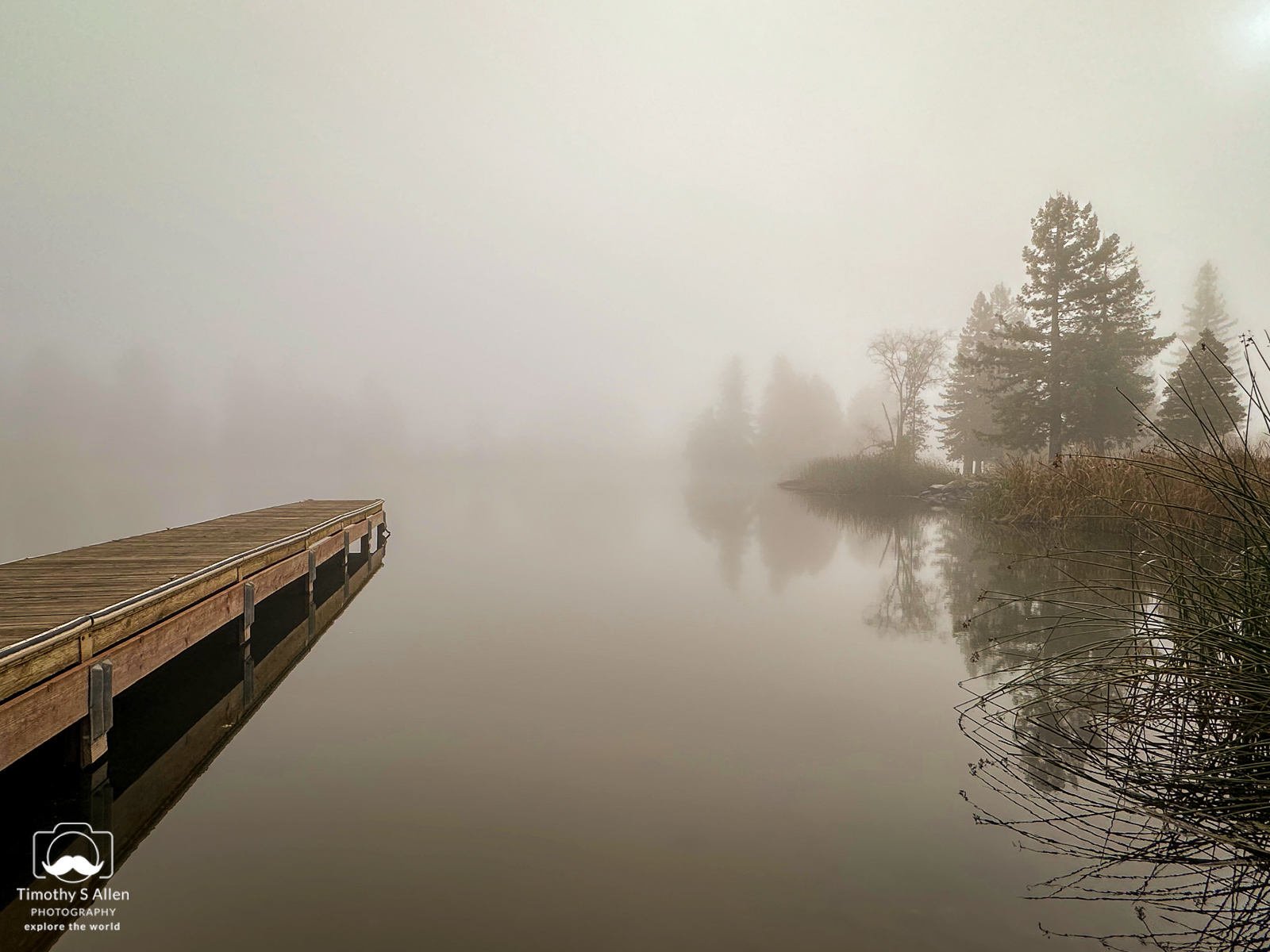
 Weekly Photography Challenge #691 Serene Waters!
Started by:
 in: Weekly Photography Challenge
- 17
- 2h, 41min ago
-
Members Picks of APRIL 2024
Started by:
 in: Members’ Picks
- 6
- 14h, 46min ago
-
Photo of the Week – April 13th
Started by:
 in: General Photo Chit Chat
- 8
- 3d, 12h ago
-
April Contest “Whispers” Now Open
Started by:
 in: General Photo Chit Chat
- 3
- 4d, 14h ago
-
Mobile Monday Challenge
Started by:
in: General Photo Chit Chat
- 10
- 1wk, 5d ago
-
RE MI DO DO SO
Started by:
in: Landscape Photography
- 3
- 2h, 13min ago
-
Converting to Macro?
Started by:
 in: General Photo Chit Chat
- 8
- 2h, 14min ago
-
Can a Landscape be Vertical…
Started by:
in: Photography Throwdowns
- 7
- 3h, 37min ago
-
Solar Eclipse – Path of Totality (Southern Illinois)
Started by:
 in: General Photo Chit Chat
- 4
- 4h, 3min ago
-
dandelion
Started by:
 in: General Photo Chit Chat
- 4
- 7h, 56min ago
-
rocket
Started by:
 in: The Shark Tank Feedback Forum
- 3
- 8h, 4min ago
-
Pareidolia Throwdown
Started by:
in: Photography Throwdowns
- 7
- 10h, 54min ago
-
lines of chairs
Started by:
in: The Shark Tank Feedback Forum
- 10
- 11h, 8min ago
-
Macro photography
Started by:
 in: General Photo Chit Chat
- 4
- 1d, 4h ago
-
A Pair of Sarus Cranes
Started by:
in: Members’ Picks
- 2
- 1d, 8h ago
-
A punk rocker of the insect world
Started by:
in: General Photo Chit Chat
- 3
- 1d, 10h ago
-
Solar Eclipse
Started by:
 in: General Photo Chit Chat
- 9
- 1d, 11h ago
-
The crescent moon and star at sunset.
Started by:
in: General Photo Chit Chat
- 3
- 1d, 14h ago
-
Burning technique on budding poppy
Started by:
in: The Shark Tank Feedback Forum
- 6
- 2d, 1h ago
-
Albinar AGD 80-200 Macro Zoom
Started by:
in: General Photo Chit Chat
- 7
- 2d, 2h ago
-
Can a Landscape be Vertical…
Started by:
 in: Landscape Photography
- 8
- 2d, 4h ago
-
the wildlife of nyc
Started by:
in: General Photo Chit Chat
- 8
- 2d, 7h ago
-


- You must be logged in to create new topics.